
Login to Portal Using SSO
Single Sign-On (SSO) is an authentication technology that provides users with a convenient, secure, and seamless experience for accessing multiple systems. Currently, the ZOLOZ Portal SSO supports two mainstream protocols: SAML and OIDC. Once SSO is enabled for a specified account, users only need to complete authentication once to access multiple related systems or services. This simplifies the login process and enhances the user experience.
Step 1: Configure SSO
1. Configure ZOLOZ Metadata in the Merchant System
Merchants need to select and configure SAML or OIDC metadata in their system based on actual business requirements.
Configure SAML Metadata
Clients need to independently complete the metadata configuration for the SAML protocol service provider within their merchant system. The ZOLOZ metadata URL can be obtained from the table below.
If you need to configure ZOLOZ metadata manually in your merchant system, find the following fields in the XML file on the relevant site metadata page, and enter them.
Field to Configure | Metadata Source | Description | ZOLOZ Metadata URL |
Entity ID | The | Fixed value: "urn:alibaba:zoloz:portal" | Sandbox Environment: Production Environment: |
SLO Service URL | The value of the Location attribute in the | The URL differs for each environment. | |
SSO Service URL/ACS URL | The | ||
NameIDFormat | The value in the | Fixed value: "emailAddress" | |
X509Certificate |
| ZOLOZ Portal certificate |
When performing SAML SSO login, the SAML response must contain specific elements, particularly those within the SAML assertion. For more details, please refer to the SAML Response Requirements.
Configure OIDC Metadata
After creating the application corresponding to ZOLOZ Portal in the merchant system, the merchant needs to complete the OIDC protocol-related configuration. The configuration requirements for several key settings are as follows:
- Authorization Mode: Only the
authorization_codemode is supported. - Authorization Endpoint: Only supports returning
code. - Token Exchange Authentication Methods: Supports
client_secret_basicandclient_secret_post.
client_secret_basic: Indicates thatclientIdandclientSecretare stored in the HTTP Header.client_secret_post: Indicates thatclientIdandclientSecretare stored in the HTTP POST request parameters.
- Login Callback URL: Enter the callback interface address of ZOLOZ Portal, the format is the Portal's corresponding environment URL + "/portal/api/user/oidc/callback", for example,
https://sg-production-portal.zoloz.com/portal/api/user/oidc/callback. Refer to the Understand environments and service endpoints for details.
2. Configure Merchant Metadata in the Portal
Merchants must select either the SAML or OIDC protocol for SSO login configuration based on their actual business needs.
Note: Both protocols cannot be enabled simultaneously; you must select one to activate. If you enable a new protocol while another is already active, the system will switch to the new protocol, automatically disabling the original one.
Configure SAML SSO
- Log in to ZOLOZ Portal using an administrator account.
Different sites and environments have unique ZOLOZ Portal addresses. Please select the login address according to your actual site and environment. Refer to the Understand environments and service endpoints for details. - In the left navigation bar, select Admin > SSO Login.
- Configure SAML according to the prompts on the SAML page.

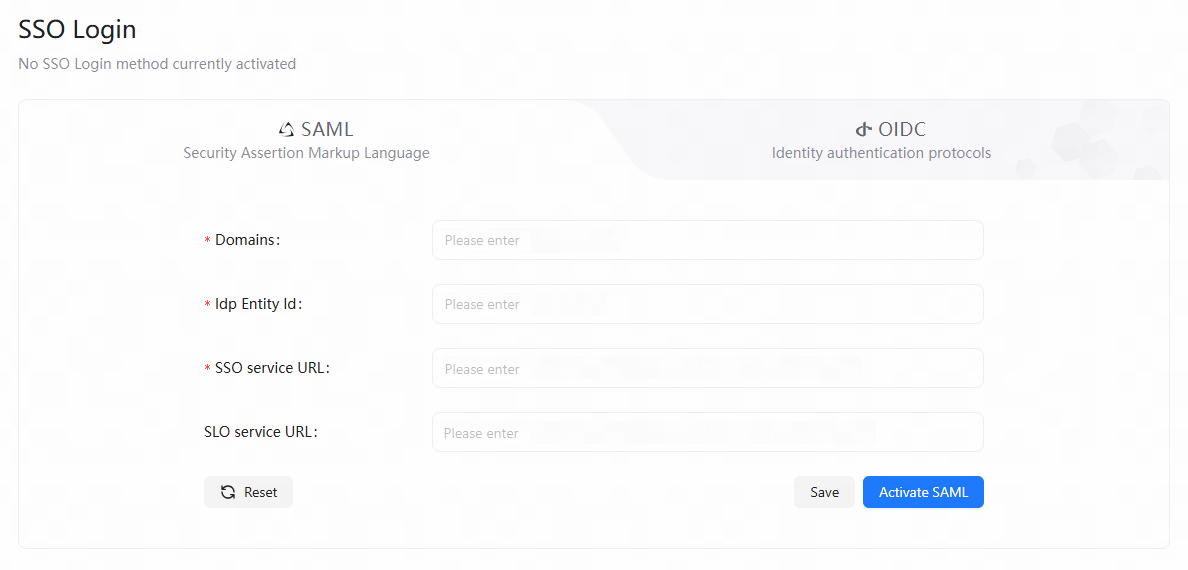
Configuration Item | Description | Example |
Domains | Enter all email domain suffixes for the SSO sub-accounts, separated by commas. | example.com,example.org |
IdP Entity ID | IdP (Identity Provider) refers to the merchant's login system, specifically the | example.com |
SSO Service URL (ACS URL) | Enter your IdP SAML login Redirect endpoint, which corresponds to the | https://idp.example.com:443/sso/SSORedirect/metaAlias/publicidp |
SLO Service URL | Enter your IdP SAML logout Redirect endpoint, which is the Location value corresponding to | https://idp.example.com:443/sso/IDPSloRedirect/metaAlias/publicidp |
- After completing the above configuration, click Save and then click Activate SAML to enable the SAML SSO functionality.
Configure OIDC SSO
- Log in to ZOLOZ Portal using an administrator account.
According to your actual site and environment. Refer to the Understand environments and service endpoints for details.
- In the left navigation bar, select Admin > SSO Login.
- Click OIDC and then configure OIDC according to the prompts on the page.
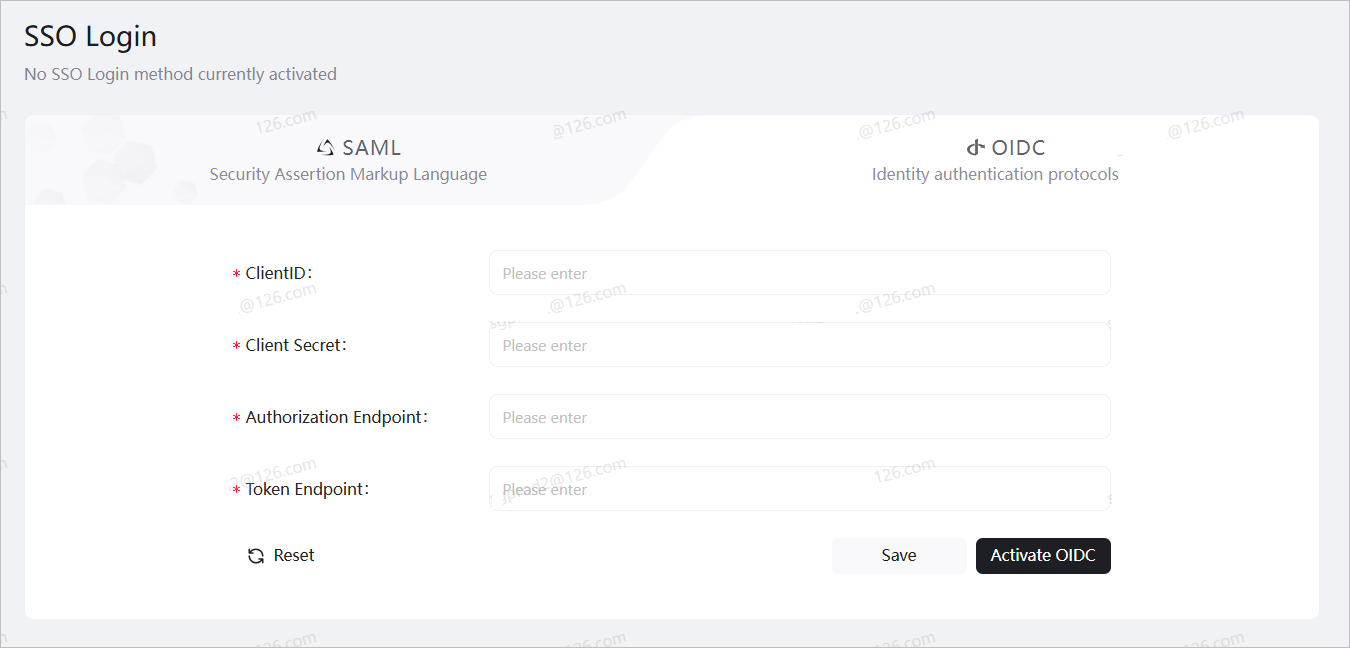
After creating the application corresponding to ZOLOZ Portal in the merchant system, the application will generate custom application information, including App ID, App Secret, Token Endpoint, Authentication Endpoint, etc. Since applications vary across merchant systems, the field names in the custom application information may differ.
Configuration Item | Description | Example |
ClientID | Corresponding App ID in the custom application information. | 78nioq2hbjdw |
Client Secret | Corresponding App Secret in the custom application information, which will be used for authentication during the token exchange. | b96758db2657b507120fd4baefd2fdd15432vewcegvd |
Authorization Endpoint | Corresponding Authentication Endpoint in the custom application information. | https://test.cn/oidc/auth |
Token Endpoint | Corresponding Token Endpoint in the custom application information. | https://test.cn/oidc/token |
- After completing the above configuration, click Save and then click Activate OIDC to enable the OIDC SSO functionality.
Step 2: Create an SSO Sub-Account
Before logging into the Portal using SSO, an administrator must first create an SSO account. Since password login accounts and SSO accounts are currently managed separately, you can also choose to convert an existing password login account into an SSO account with one click. Refer to the Account Management for details.
Step 3: Log in to the Portal Using the SSO Sub-Account
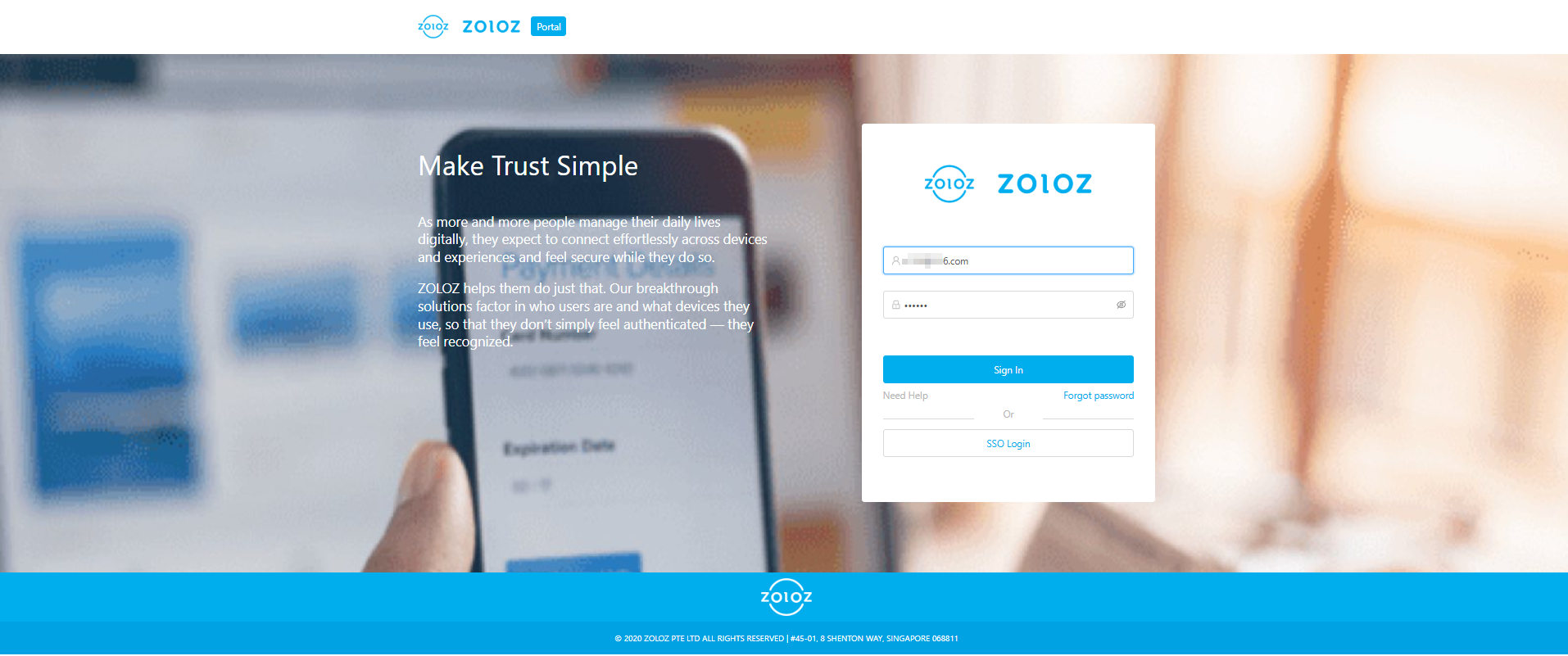
- Use the SSO sub-account to log in to ZOLOZ Portal.
- On the ZOLOZ Portal login homepage, click SSO Login.
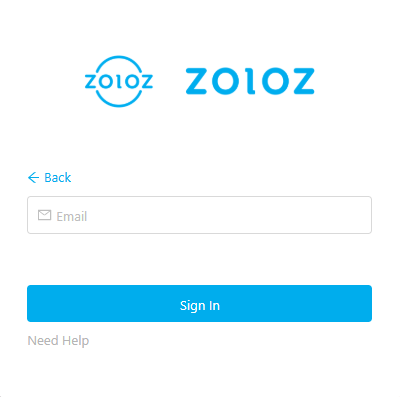
- Enter the email address associated with the SAML or OIDC configuration. This email address must match the email address of the SSO sub-account.
- After the merchant logs into the Portal via SSO, they will be automatically redirected to the merchant system. Once the login is completed in the merchant system, the page will automatically redirect back to the Portal, completing the SSO login process.
Step 4 (Optional): Disable SSO
On the SSO Login page of the ZOLOZ Portal, click Deactivate SAML or Deactivate OIDC to disable the SAML SSO or OIDC SSO functionality, respectively.