
IDN Demo User Guide
This article introduces the IDN Demo experience process, guiding you through a visualized operation to experience the independent IDN capabilities, including data uploading, risk inquiry, and risk visualization presentation.
Feature Introduction
The ZOLOZ Portal Experience Center provides a visualized demo environment for the ID Network, allowing you to intuitively experience the full capabilities of the independent IDN. You can perform the following operations to experience the capabilities (e.g., add, remove, risk query and get) of the independent IDN.
- Bulk upload and deletion of data
- Query data risk
- View risk relationship
Note: This feature is only for helping you experience the independent IDN capabilities. It does not support conducting actual business queries via result returned by RealID or risk fields from the independent IDN on the IDN page.
Feature Overview
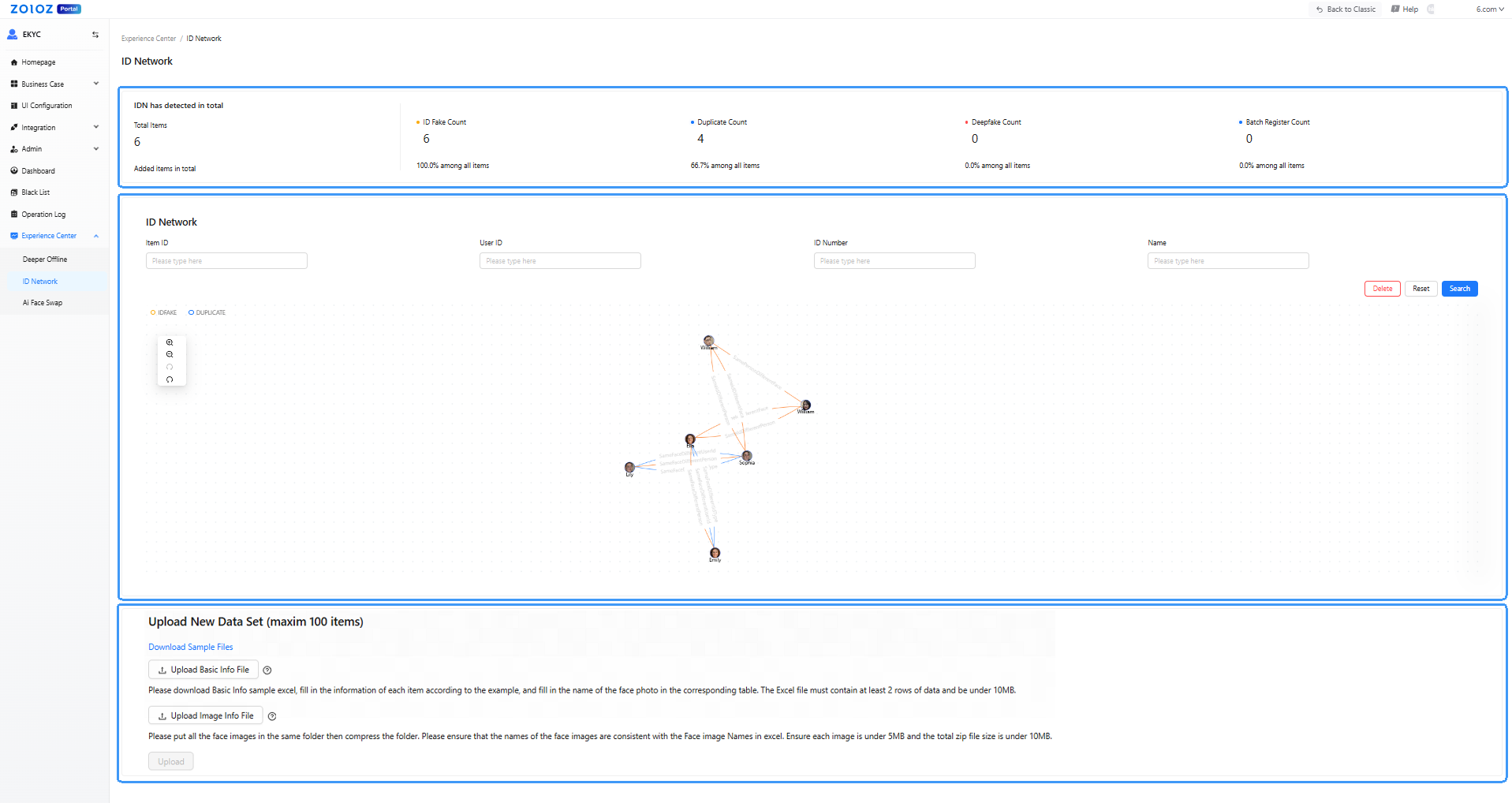
The IDN Demo page includes 3 core functional modules.
Module name | Page location | Feature description |
Data Overview Module | Top of the page | Displays the total data volume and statistics of detected risk data categories (e.g., counts and proportions). |
Risk Association Graph | Middle of the page | Visualizes detected risk group associations through an interactive graph. |
Data Upload Module | Bottom of the page | Supports bulk data uploads. The system automatically analyzes identity-related risks in the data and visualizes detected risk group information in the form of a risk relationship graph. |
Experience process
Prerequisites
Apply for an account: Contact the ZOLOZ technical team or email help@zoloz.com to apply for a ZOLOZ Portal trial account.
Step 1: Log in to ZOLOZ Portal
- Log in to the ZOLOZ Portal.
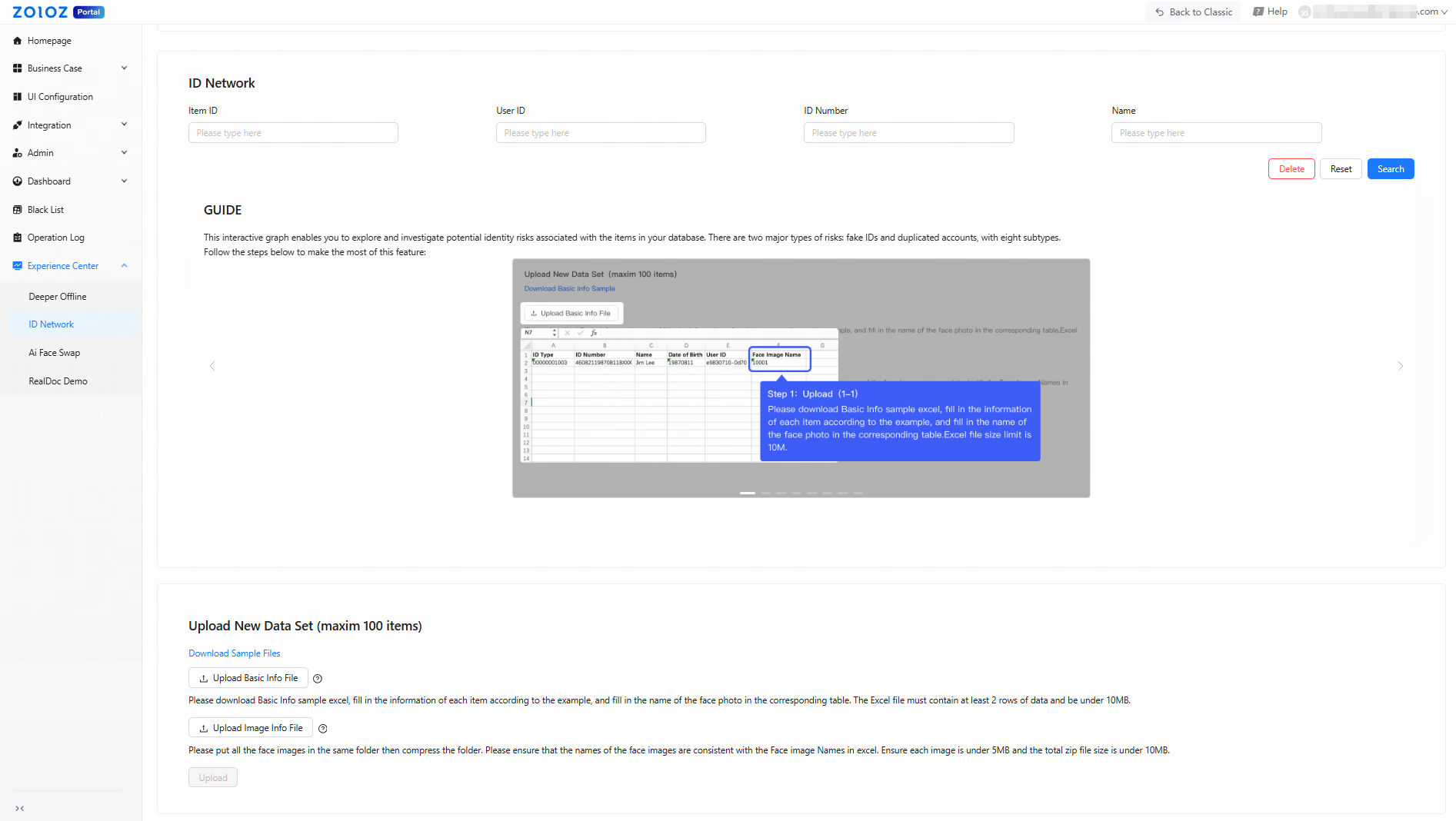
- In the left navigation pane, select Experience Center > ID Network to access the experience page.
Before your first experience with the IDN Demo, it is recommended to read the Getting Started Guide on the page to ensure a smooth completion of the IDN feature experience process.
Step 2: Download template file
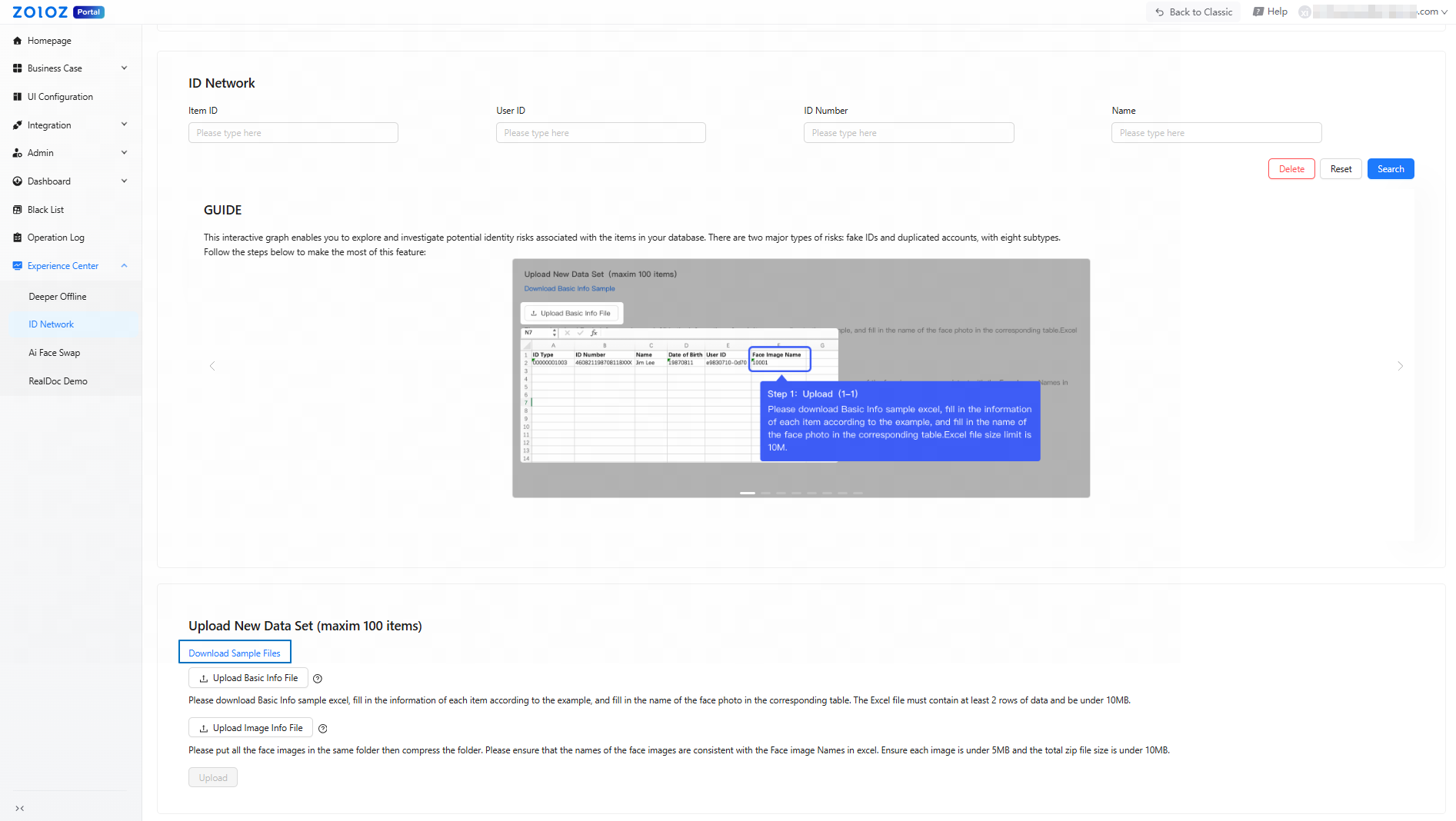
Click Download Sample Files to download two template files simultaneously:
- Basic information template File (Excel)
- Sample Facial Image File (ZIP archive)
Note: When downloading for the first time, your browser will prompt you to confirm whether to allow multiple file downloads. Please click Allow. Otherwise, only one of the files will be downloaded.
Step 3: Fill in and Upload File
Before performing the risk check, you need to upload the basic information and facial images.
- Complete the basic information.
Fill in all required basic information strictly according to the Excel template format. - Compress the facial images.
Place all facial images into the same folder and compress them into a single ZIP file. Ensure that the filenames of each facial image inside the ZIP package exactly match the entries in the "Face Image Name" column of the Excel file.
Note: Both the Excel file and the image ZIP package must not exceed 10 MB in size. Additionally, each individual facial image must not exceed 5 MB in size. - Click Upload Basic Info File to upload the completed Excel file.
- Click Upload Image Info File to upload the compressed facial image package (ZIP).
- Click Upload. The system will automatically perform risk analysis and generate a risk information relationship diagram.

Note: The risk analysis process may take some time. Please wait patiently.
Step 4: View Risk Relationship Graph
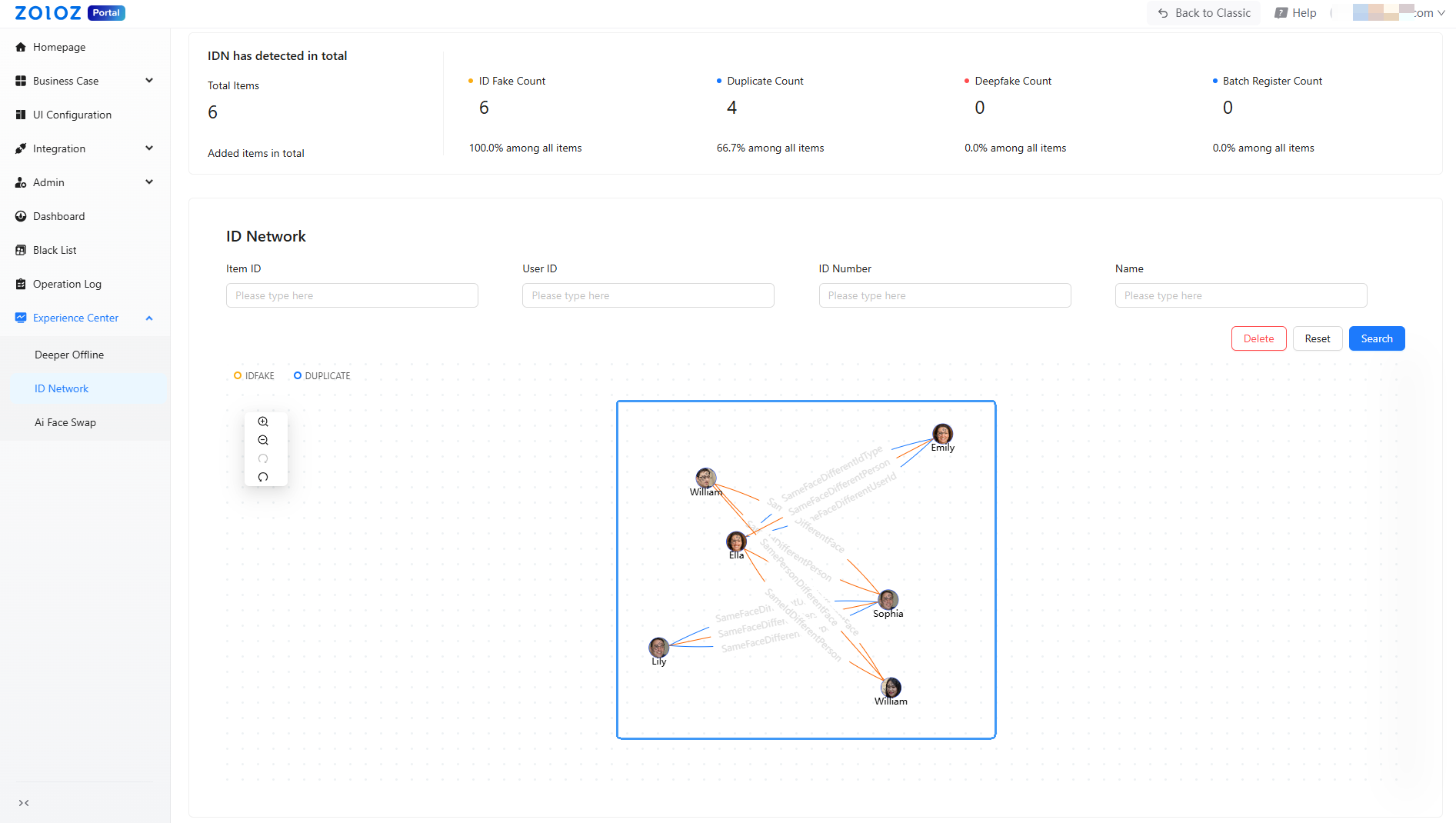
You can view the risk relationship graph in the middle section of the page and analyze the distribution and interconnections of risks after generating the risk relationship graph.
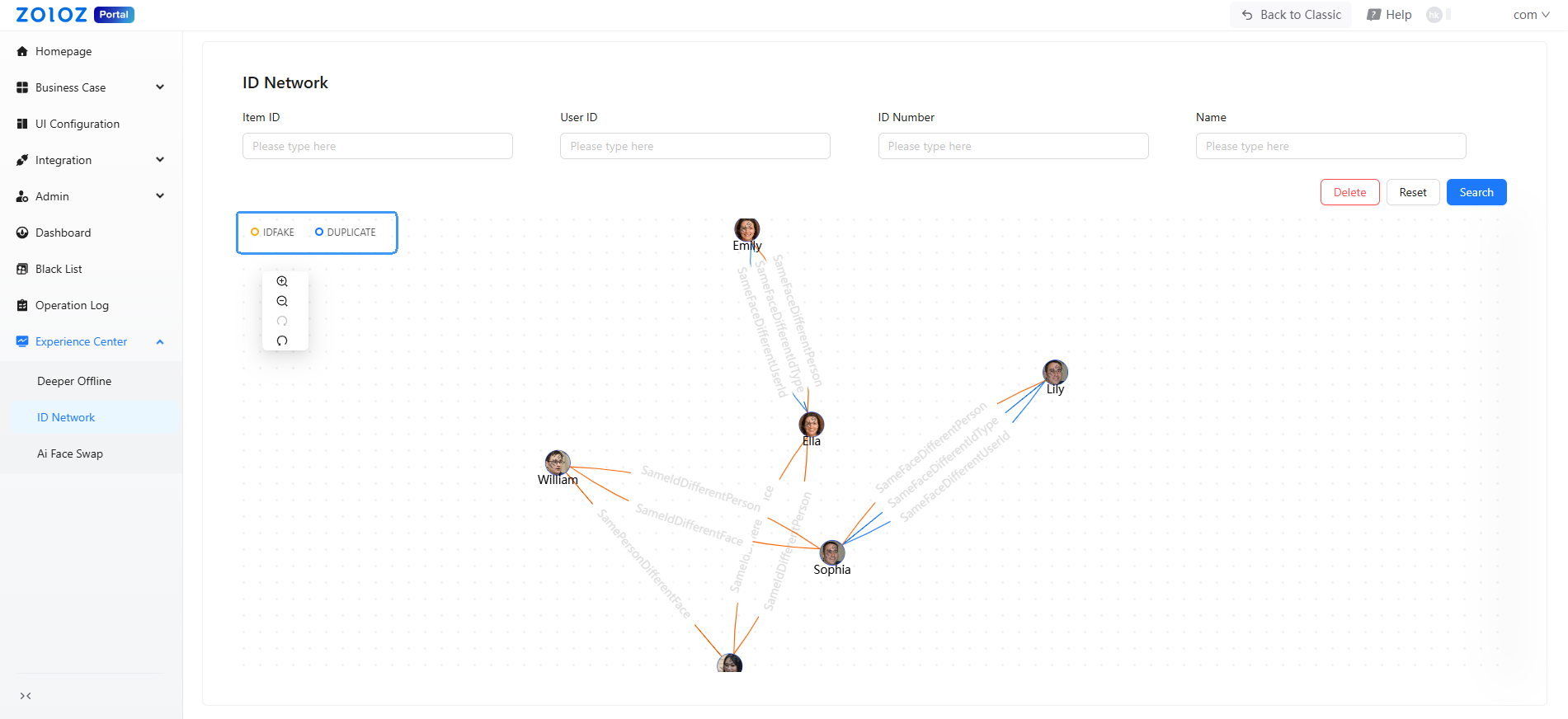
- Risk type display: Supports four risk types (IDFAKE, DUPLICATE, BATCH_REGISTER, and DEEPFAKE). Each risk type is visually distinguished by a unique line color. For details, see Risk introduction.
- Display control:
- By default, all detected risk types are displayed; undetected risk types are not shown.
- Click the risk type icon to toggle the visibility of specific risk types, enabling a clearer view of targeted risk query results.
- Precise query: Supports querying via fields such as
Item IDandUser IDto retrieve the datailed risk relationship graph for specific risk data.
Step 5: View Risk Details
- Hover your mouse over a profile picture to view a zoomed-in image of the avatar.
- Click any profile picture to view its associated risk relationships. A popup window will display the corresponding risk information and basic data, including risk type, name and document type.

Step 6 (optional): Delete Data
Click Delete in the middle section of the page to remove uploaded data and the risk relationship graph. Deletion allows you to re-upload data for repeated experience testing.
Risk Relationship Graph Toolbar Instructions
The toolbar on the left side of the risk relationship graph provides the following tools:

- Free zooming: Use the zoom-in and zoom-out buttons to adjust the display scale of the graph.
- Operation History: Use the forward and backward buttons to undo or redo actions.
- Drag-to-Pan: Click and drag the graph area to reposition the relationship diagram.