
Roles & Permissions
Overview
The Roles & Permissions module allows administrators with appropriate permissions to create custom roles with specific permissions. This enables fine-grained access control based on your organization's needs.
👤 Who can do this: Only ADMINISTRATOR and PROVIDER_ADMINISTRATOR roles have access to create and manage custom roles.
View Roles
To view all roles:
- In the left navigation bar, select Team > Roles & Permissions
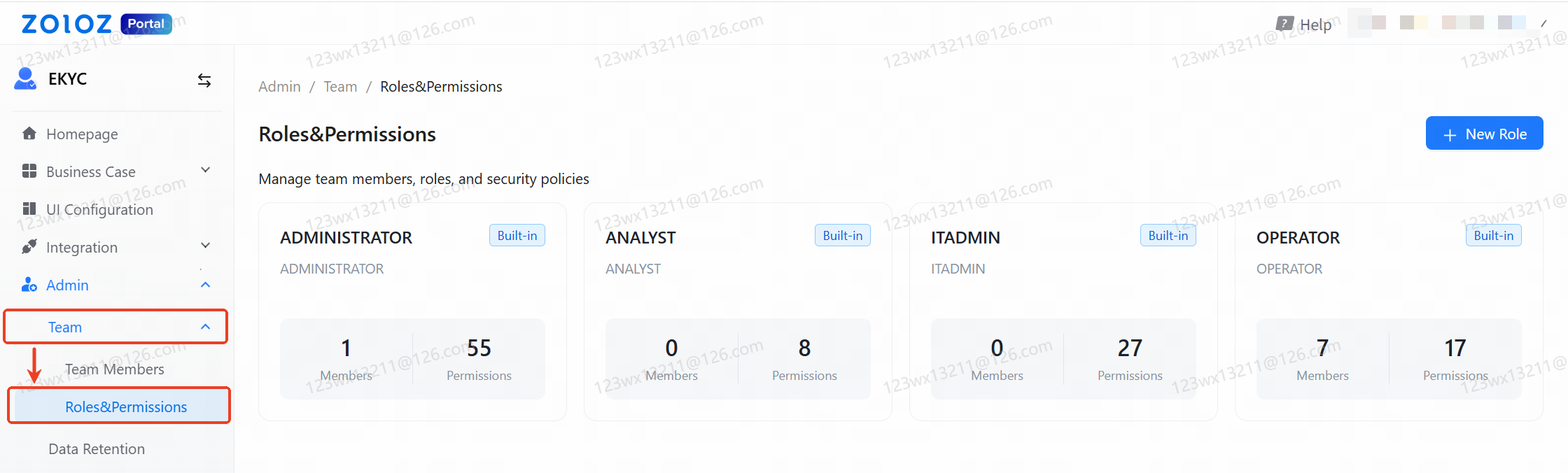
- The role list displays all system roles and custom roles as cards
Each role card shows:
- Role Name — The name of the role
- Type — System (built-in) or Custom
- Members — Number of users assigned to this role
- Permissions — Number of permissions assigned
- Actions — Manage Permissions, Delete (custom roles only)
Create a Custom Role
To create a new custom role:
- In the Roles & Permissions page, click Create new role
- Fill in the basic information:
Field | Description | Validation | Required |
Name | Role name | 2-50 characters, unique | ✅ |
Description | Role description | Up to 1000 characters | ❌ |
- Select permissions from the permission tree:
- Use the search box to find specific permissions
- Expand permission categories to view individual permissions
- Check the checkbox to select a permission
- The Selected Permissions counter shows how many permissions are selected
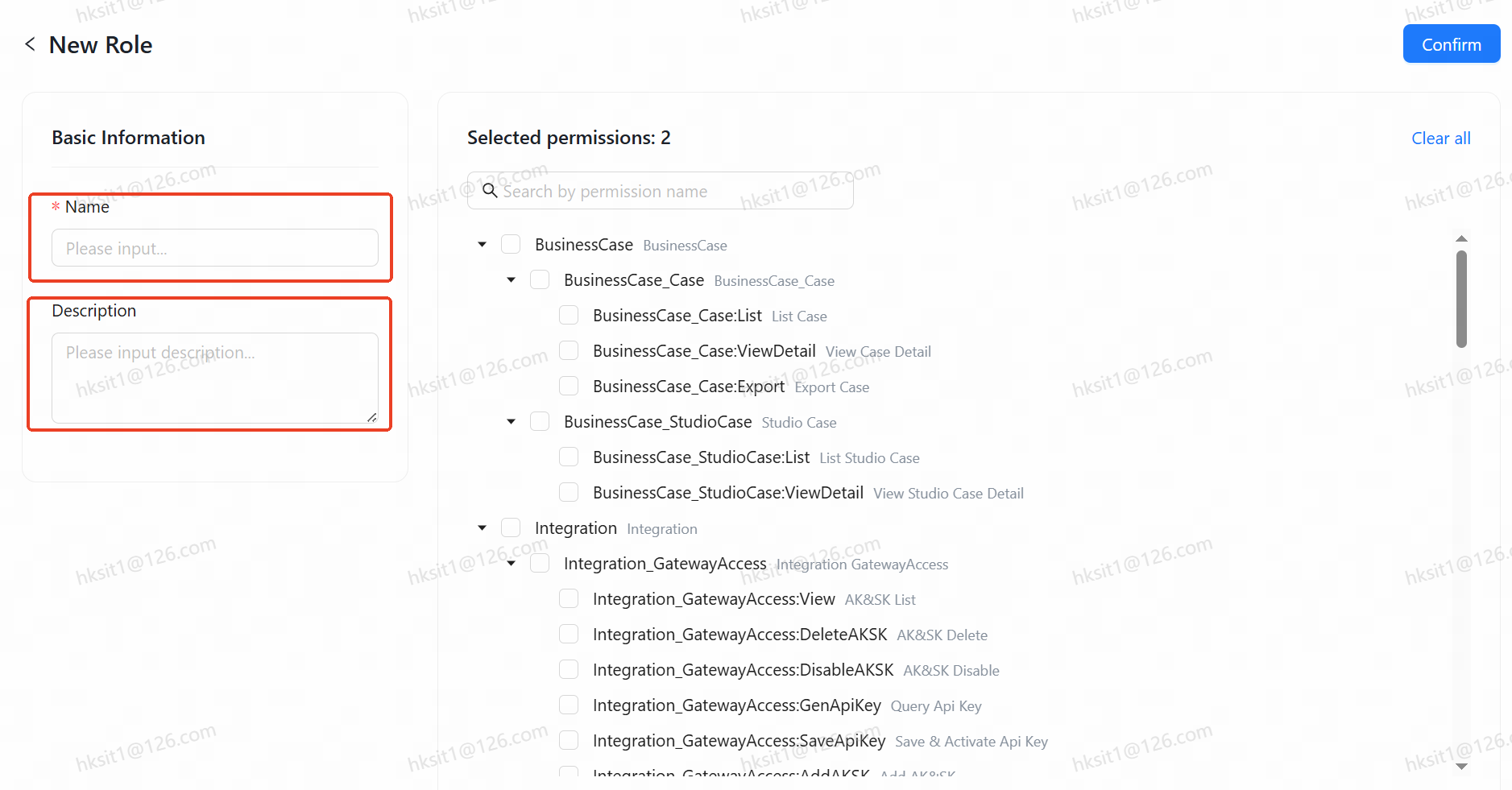
📘 Note: You must select at least one permission. Some permissions are restricted and can only be assigned to administrator roles.
- Click Save to create the role
Edit Role Permissions
To edit a custom role's permissions:
- Find the role card in the Roles & Permissions list
- Click role card
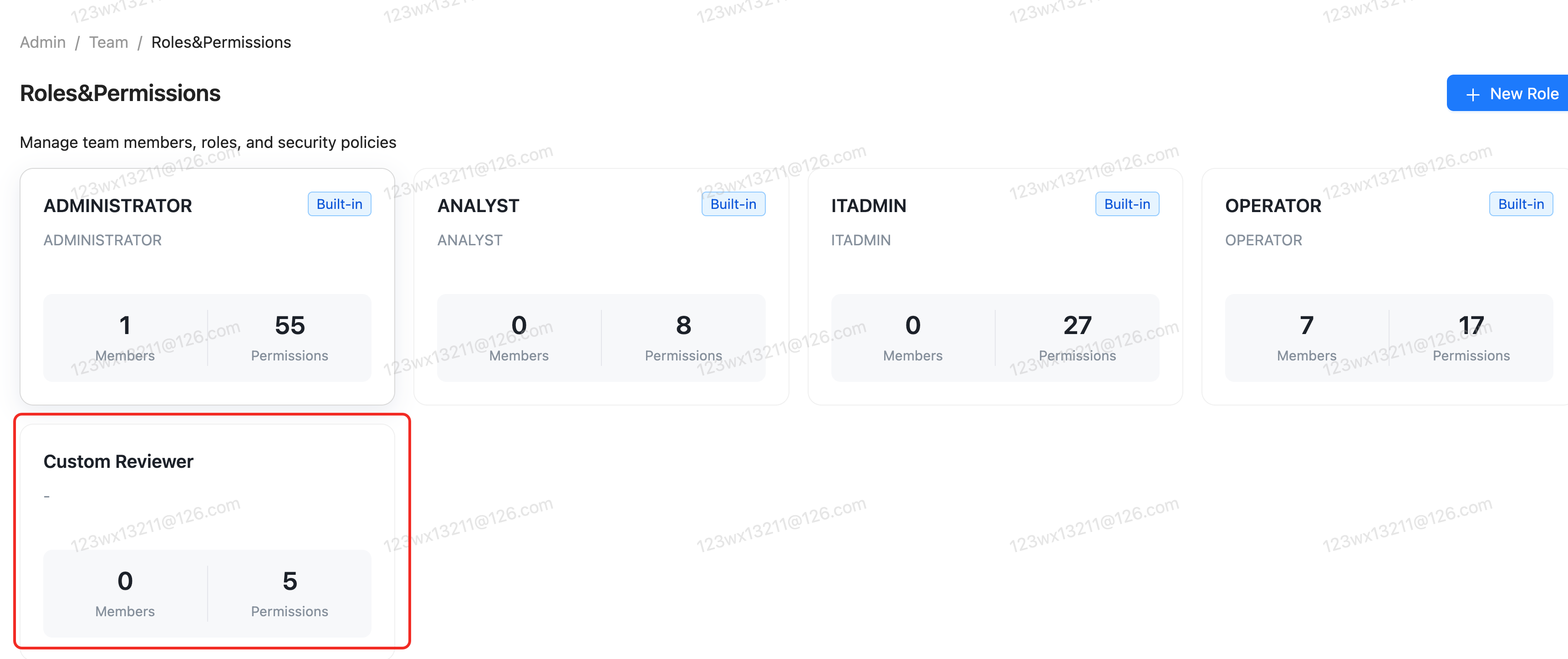
- Modify the permission selections
- Click Save to apply changes
📘 Note: System roles (ADMINISTRATOR, OPERATOR, etc.) cannot be edited. Only custom roles can be modified.
Delete a Custom Role
To delete a custom role:
- Find the role card in the Roles & Permissions list
- Click Delete
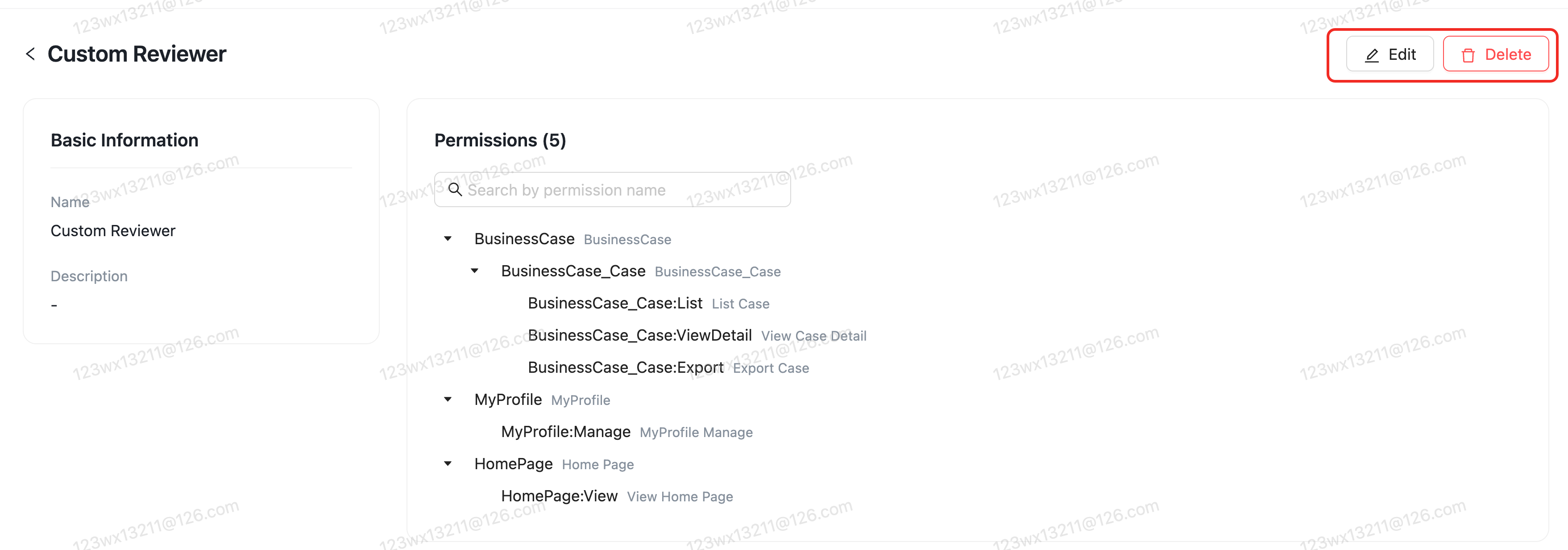
- Confirm the deletion in the popup dialog
⚠️👤 Important: A role cannot be deleted if it has members assigned to it. You must first remove all members from the role or assign them different roles.
Permission Categories
Permissions are organized in a hierarchical tree structure by functional module:
Category | Description | Example Permissions |
HOMEPAGE | Homepage access | View Homepage |
BUSINESSCASE | Case management | Case Search, Case Detail View, Case Export, Studio Case, RealDoc Case |
UI_CONFIGURATION | UI customization | UI Configuration Management |
INTEGRATION | Integration settings | Gateway Access (AK/SK, API Key), Integration Document, Webhook |
BLACKLIST | Blacklist management | Blacklist Search, Add/Delete Blacklist Items |
OPERATIONLOG | Audit logs | View Operation Log, Export Operation Log |
ADMIN | Team and security management | Team Member Management, Security Policies, Data Retention, IP Access Restrictions, SSO Login Configuration |
MYPROFILE | Personal profile | Manage My Profile |
DASHBOARD | Analytics dashboard | Historical Metrics, Current Data |
EXPERIENCECENTER | AI experience features | Deeper Offline, ID Network, AI Face Swap, RealDoc Demo |
📘 Note:
- Deeper Offline:Only team memers with ADMINISTRATOR and Operator can access this page.
- AI Face Swap:Only team memers with ADMINISTRATOR and Operator can access this page.
- ID Network:All team memers able to view
- RealDoc Demo:Team members can see this page only with the associated merchant purchase this product.